Documentation
- Editor creates an event in Photostream.
- Shooters join the event.
- Images arrive in Photostream.
- The same event can be shared out as a public gallery.
Contents
Overview
Photostream is built around one event. The editor creates the event, gets a join code, and gives that code to shooters using CardRunner or CardReader. If the workspace plan includes FTP, the editor can also create FTP credentials for cameras that upload directly, with the event join code used as the FTP password. No matter how images come in, they all land in the same event for the editor.
Typical setup
Editor signs in to Photostream on a Mac, creates an event, and shares the join code. Shooters either enter that code in CardRunner or CardReader, or use FTP credentials if the plan supports direct camera FTP, with the join code serving as the FTP password. Images then appear in Photostream live for review, tagging, export, and optional public-gallery sharing.
Editor Setup
The editor owns the event setup. Start here before you ask any shooters or runners to connect.
- Create the event — create a new event in Photostream. The app gives that event its own join code right away.
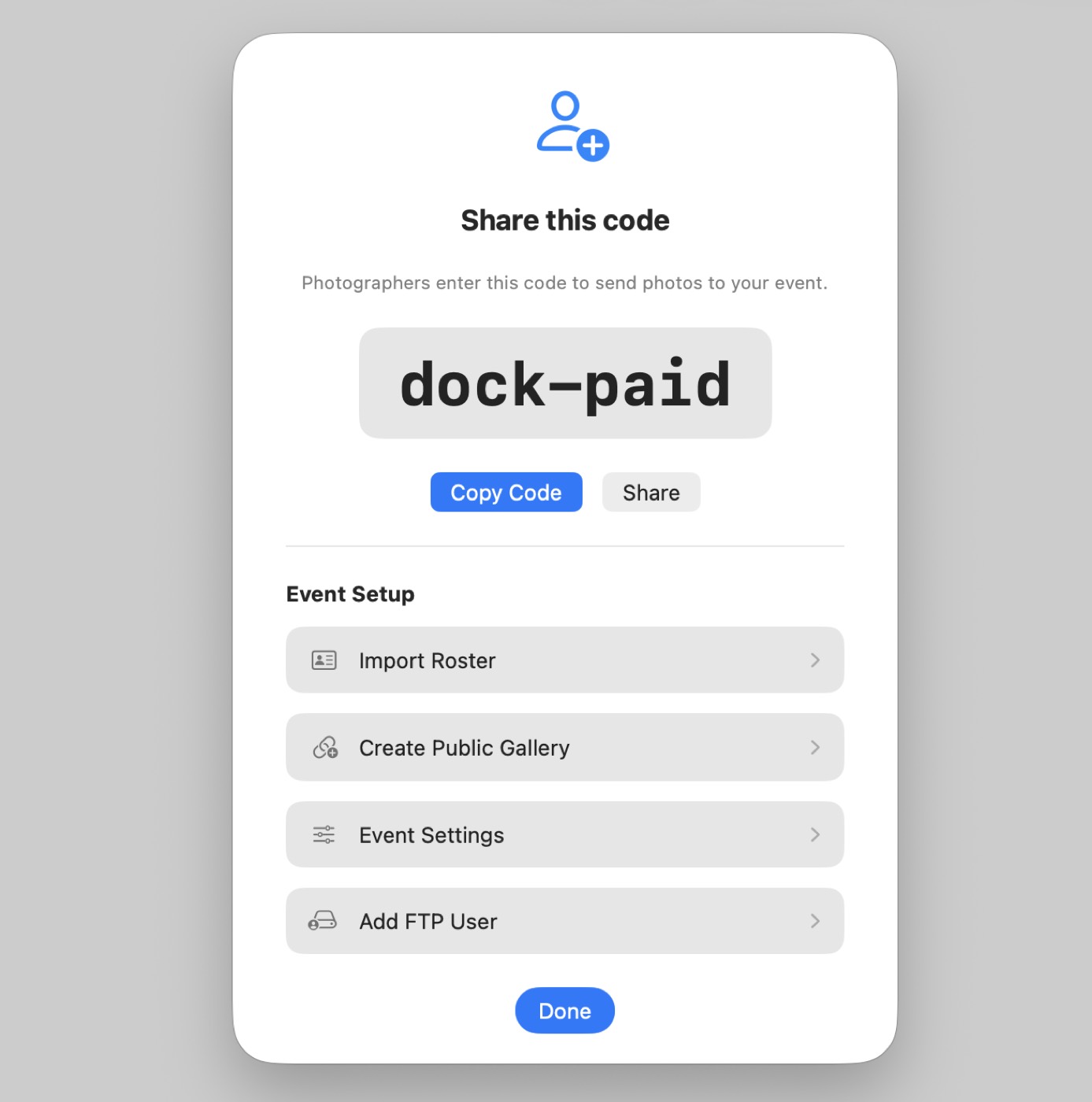
- Use the event setup sheet — from the join-code handoff flow you can import or edit the roster, create the public gallery, and add or manage FTP users for that event.
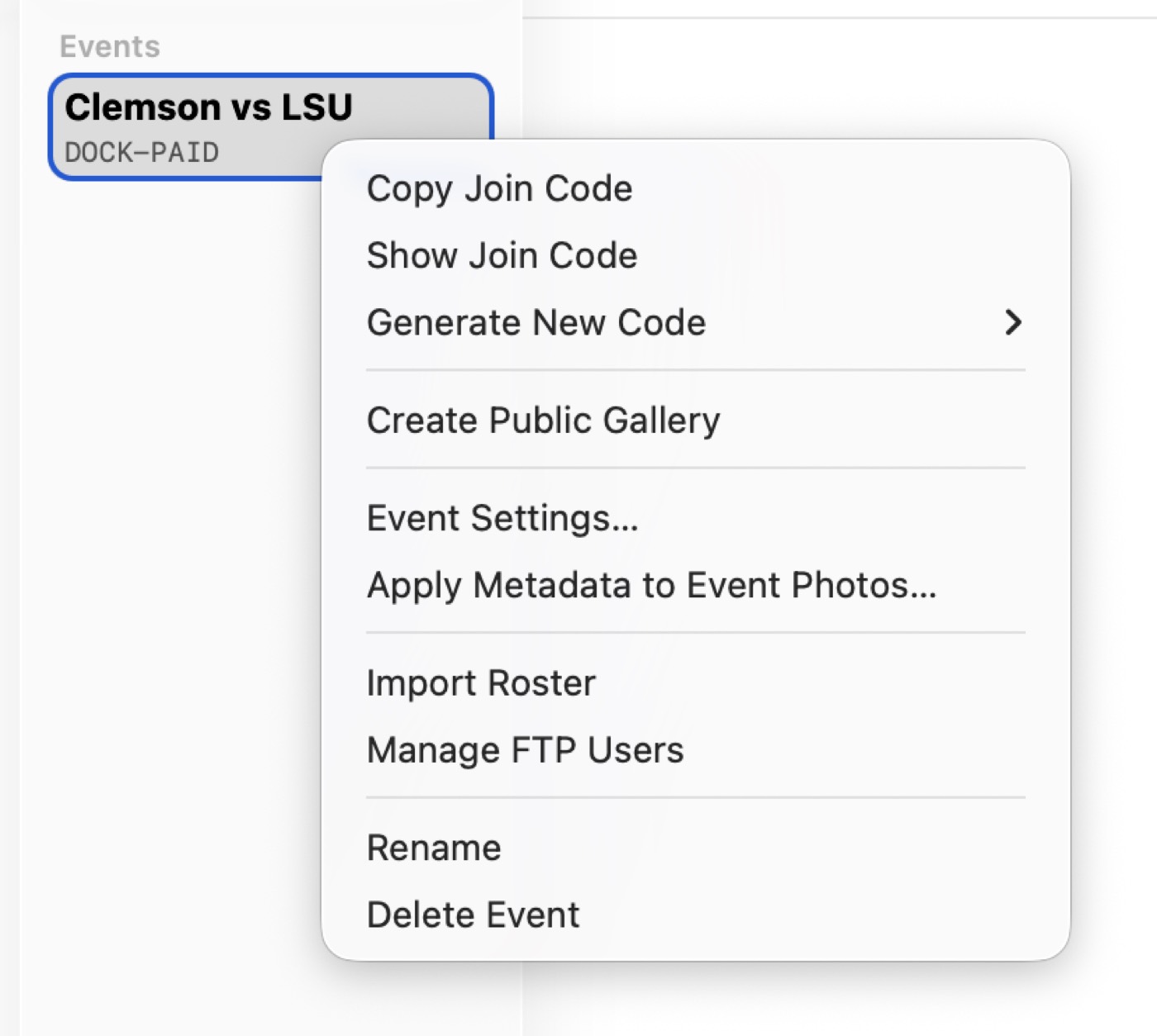
- Edit event details from the sidebar — right-click an event to reach event-level actions such as event settings, public gallery controls, FTP user management, roster editing, and event-wide metadata apply.
- Watch the live feed — once shooters connect, photos begin appearing in the event automatically as uploads complete.
- Switch between Grid and Filmstrip — use Grid for broad scanning and selection, or Filmstrip when you want a larger active image with faster left/right review.
- Open a photo and adjust it — open the image, then press
Eto show the adjustments panel for exposure, brightness, contrast, shadows, highlights, saturation, and temperature. - View metadata in the Info inspector — in the viewer or filmstrip, press
Ito show the metadata panel on the right. - Edit metadata directly — single-photo metadata editing happens inline in the inspector. For multi-photo edits, select several images and use the metadata editor sheet.
- Tag players quickly — press
Tand type jersey numbers or keywords. Imported rosters let those numbers resolve to player names. - Download or export — press
Dto download the current image, use bulk selection for multiple downloads, or export adjusted files when edits are applied. - Send to another editor when needed — use
Oto open images in Lightroom, Photoshop, or another external editor. - Hide or clean up images — hide individual frames you do not want in the main workflow, and use admin-level actions when an event needs more aggressive cleanup.
- Create more events or organize them into folders — repeat the same workflow for each assignment, and use folders in the sidebar when you want cleaner event grouping.
Event setup sheet
When the editor creates an event, Photostream immediately presents the setup sheet so the handoff does not get lost. This is the fastest place to copy or share the join code, import the roster, create the public gallery, open event settings, or add an FTP user before the event starts.
Event sidebar actions
After setup, the same event-level tools stay available from the sidebar context menu. That is where the editor can copy or regenerate the join code, manage FTP users, reopen event settings, create the public gallery, import the roster again, or apply metadata defaults across the event.
Roster import
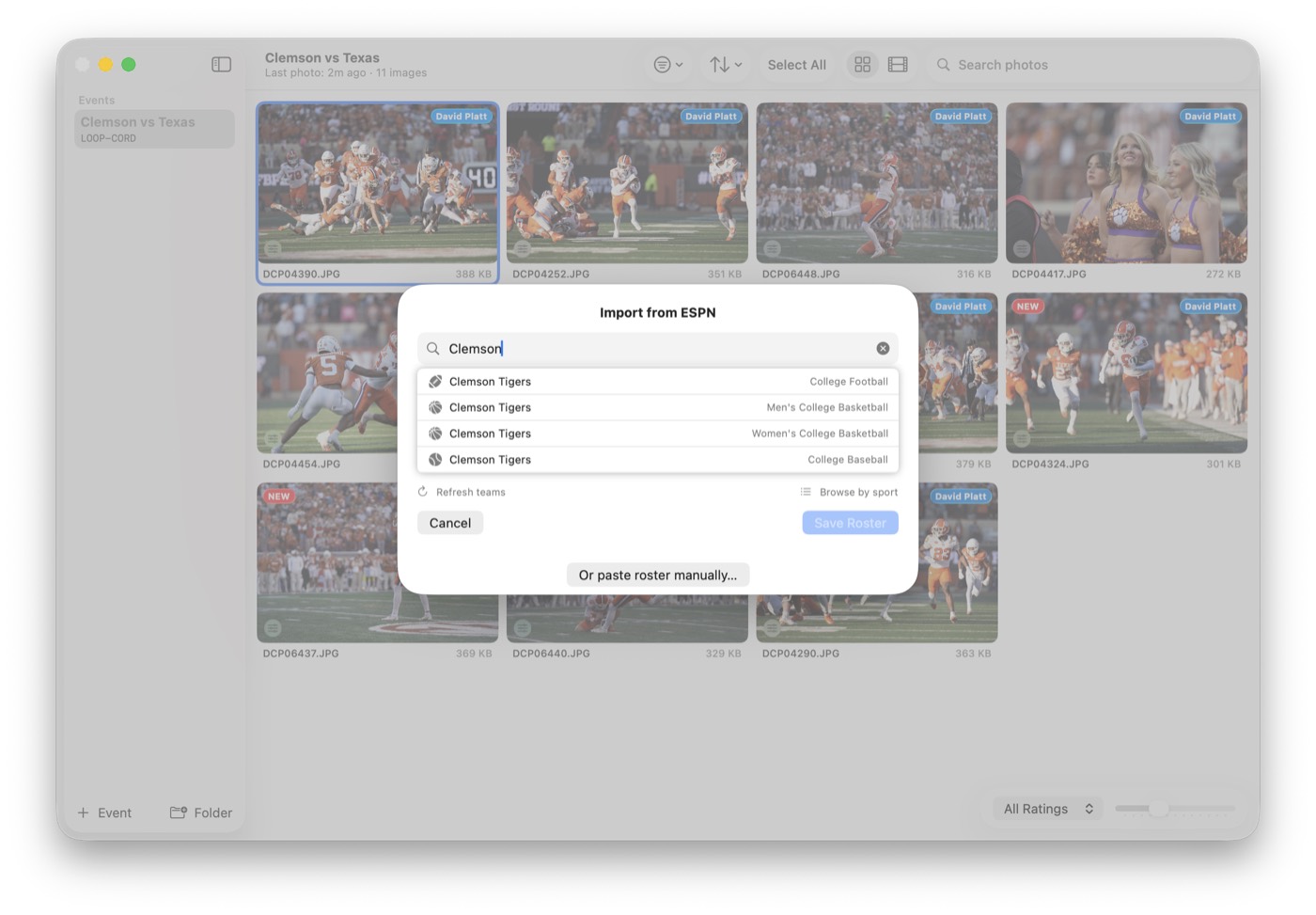
Rosters matter because player-number tagging is much faster when the editor can type jersey numbers instead of full names. Photostream supports importing a roster from a team lookup flow or pasting the roster manually if you already have the names and numbers from the school, team, or wire desk.
Shooter Paths
There are three ways for images to arrive in an event.
CardRunner (iPhone/iPad) upload — learn more
Best for: runners or mobile ingest from the field
CardRunner is the iPhone/iPad ingest path. It is best when someone is physically pulling cards or directly connecting a camera via USB and needs uploads to start right away.
- Install CardRunner on the iPhone or iPad being used for ingest.
- Open Settings → Photostream and enter the event join code.
- Set preferences for filtering and upload behavior. CardRunner can import everything or narrow the workflow to rated or protected images.
- Connect the camera or insert the SD card using the appropriate adapter or reader.
- Start the import. CardRunner uploads into the same Photostream event tied to that join code.
- Open CardRunner’s upload queue or progress UI if you need to confirm what is uploaded, still pending, or failed and needs retry.
CardReader (macOS) upload — learn more
Best for: desk-side card ingest on a Mac
CardReader is the Mac ingest app. It is useful when a runner is bringing cards back to a desk or media room and you want a fast card-to-event workflow.
- Install CardReader on the Mac being used for ingest.
- Open Settings → Photostream and enter the event join code.
- Go to settings and choose to import everything or filter to rated/protected images depending on the workflow.
- Choose upload quality settings if you want optimized uploads instead of full-resolution originals.
- Insert the SD card. CardReader detects the card and shows it as an import source.
- Imported files upload into the event tied to that join code.
During The Event
Once shooters or runners are connected, the editor stays in Photostream and works from the live event view.
What the editor sees
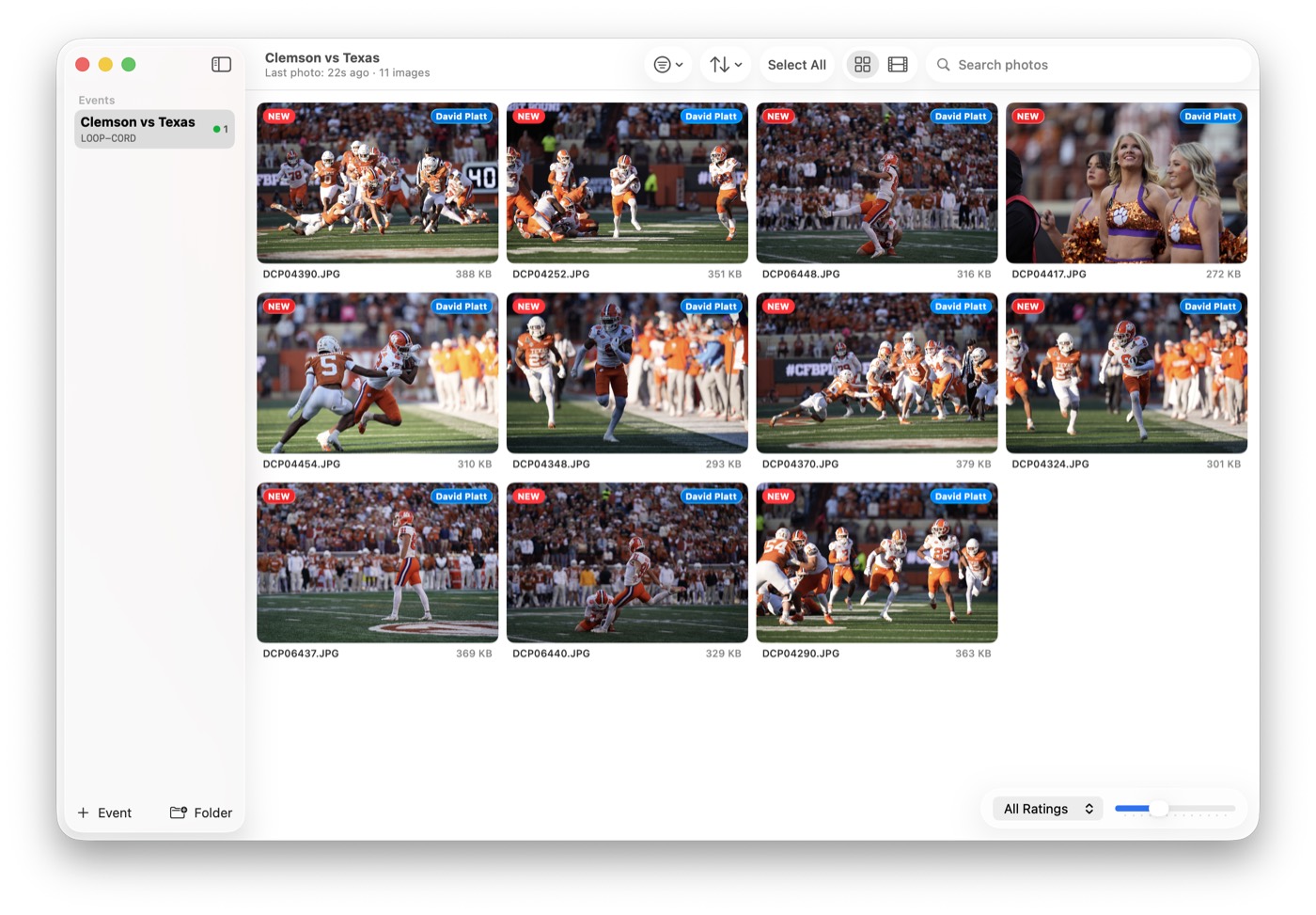
- Real-time feed — photos appear within seconds of capture.
- One event, multiple shooters — images from FTP, CardRunner, and CardReader all show up in the same event.
- Metadata and tagging — tag players, add keywords, and apply event-level defaults before export.
- Keyboard shortcuts —
Ddownload,Ppin,Spacefullscreen, arrow keys to navigate. - Pin system — pin important shots to keep them at the top.
- Bulk operations — select multiple photos to download or hide.
- Filter by shooter — when multiple photographers are streaming, filter by name.
- Open in editor — download and open directly in Lightroom or Photoshop.
- Public gallery handoff — create share links, QR codes, optional passwords, and expiration settings from the same event when clients or staff need browser access.
Inspector and metadata
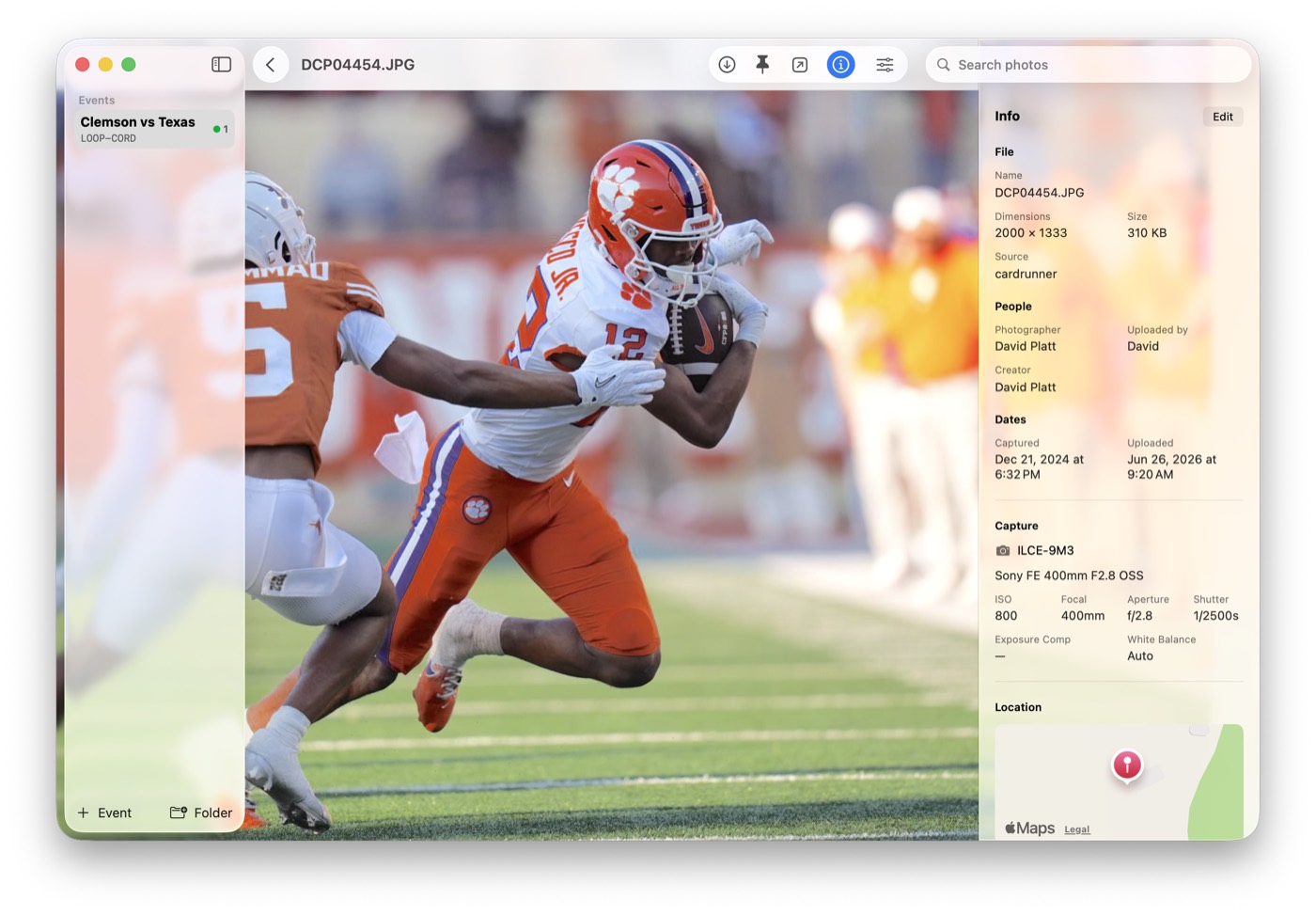
Open any frame and press I to inspect or edit metadata on the right side. Photostream shows the file details, source, uploader, capture time, camera information, and location data when available. This is also where single-image metadata edits happen without forcing the editor into a separate modal flow.
Quick adjustments
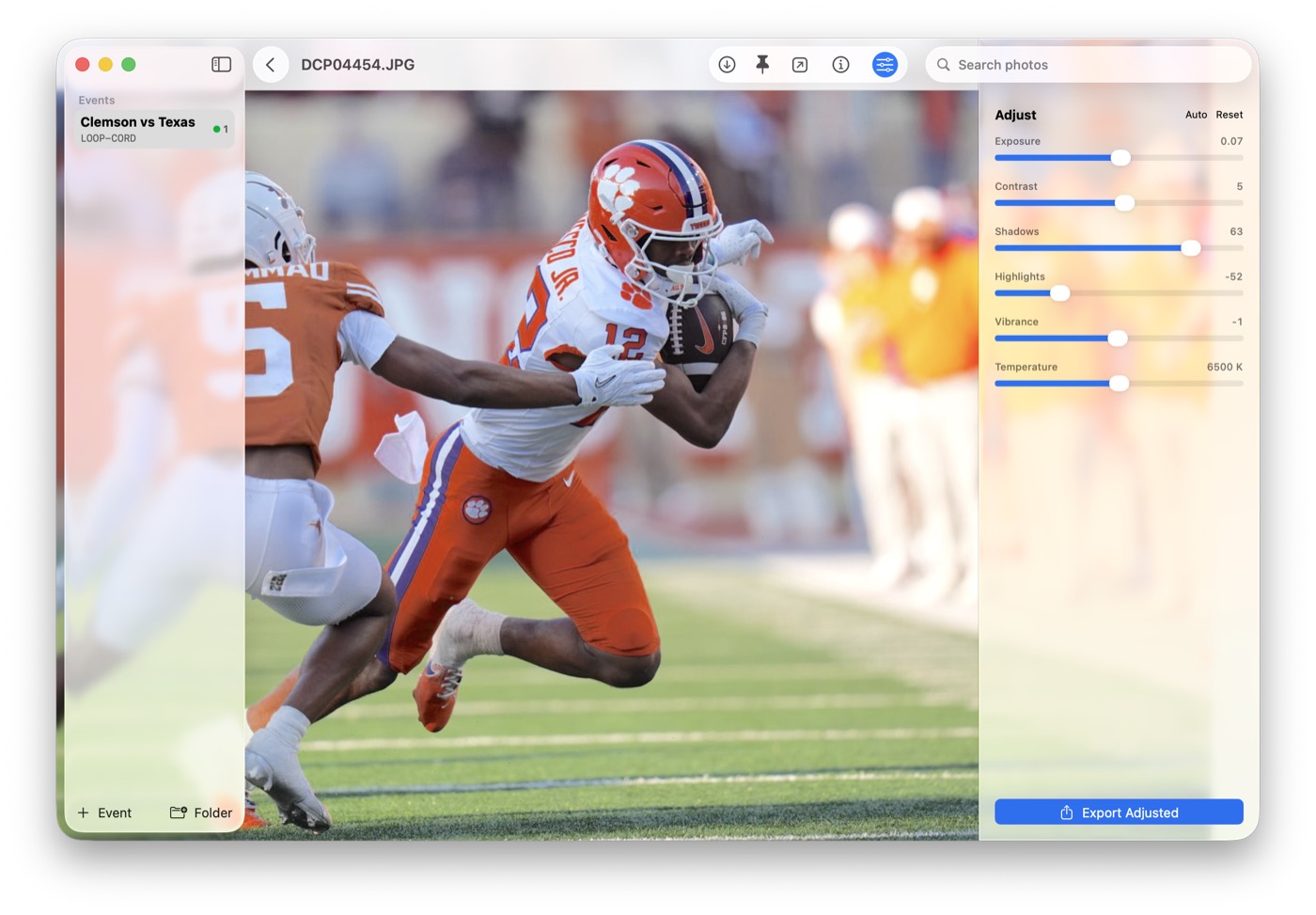
If an image only needs a fast correction before delivery, press E in the viewer. The built-in adjustment panel covers the common live-deadline edits: exposure, contrast, shadows, highlights, vibrance, and color temperature. When the frame is ready, export the adjusted copy directly from the same panel.
Tagging players and keywords
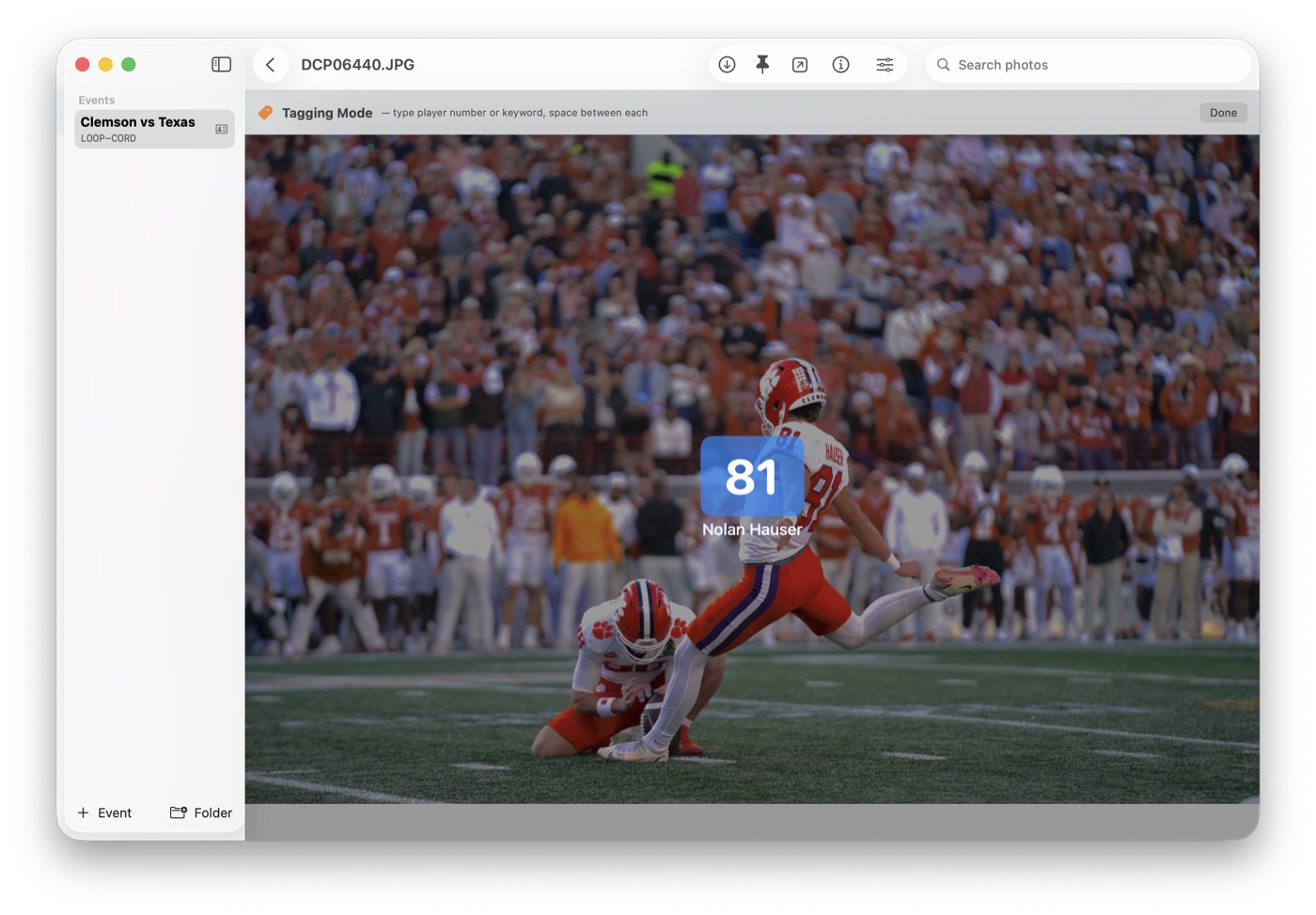
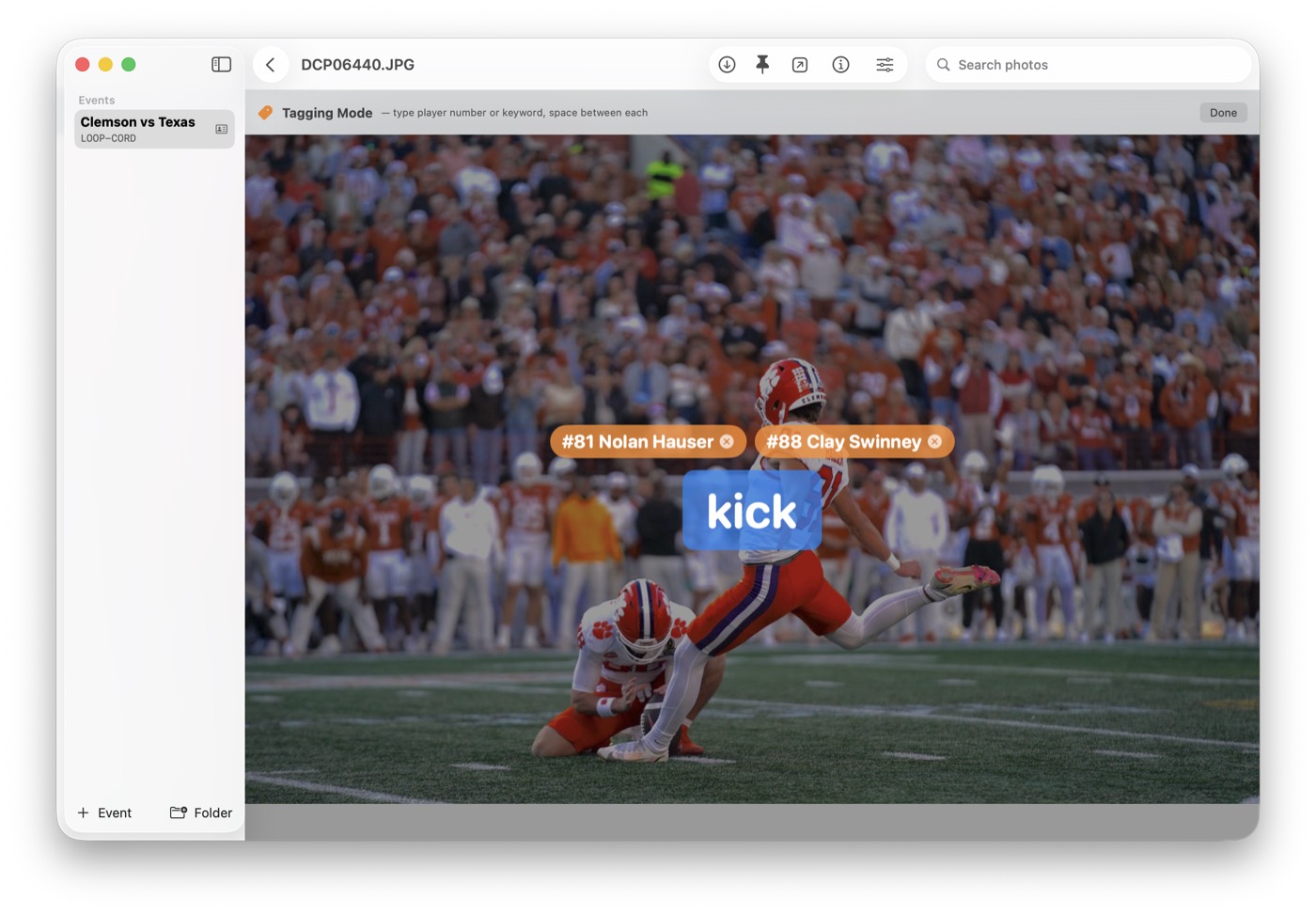
Press T to enter tagging mode. If the roster was imported earlier, jersey numbers resolve to player names automatically, which keeps tagging fast in a live sports workflow. Editors can also add plain keywords for moments, play types, or desk-specific search terms.
Export naming
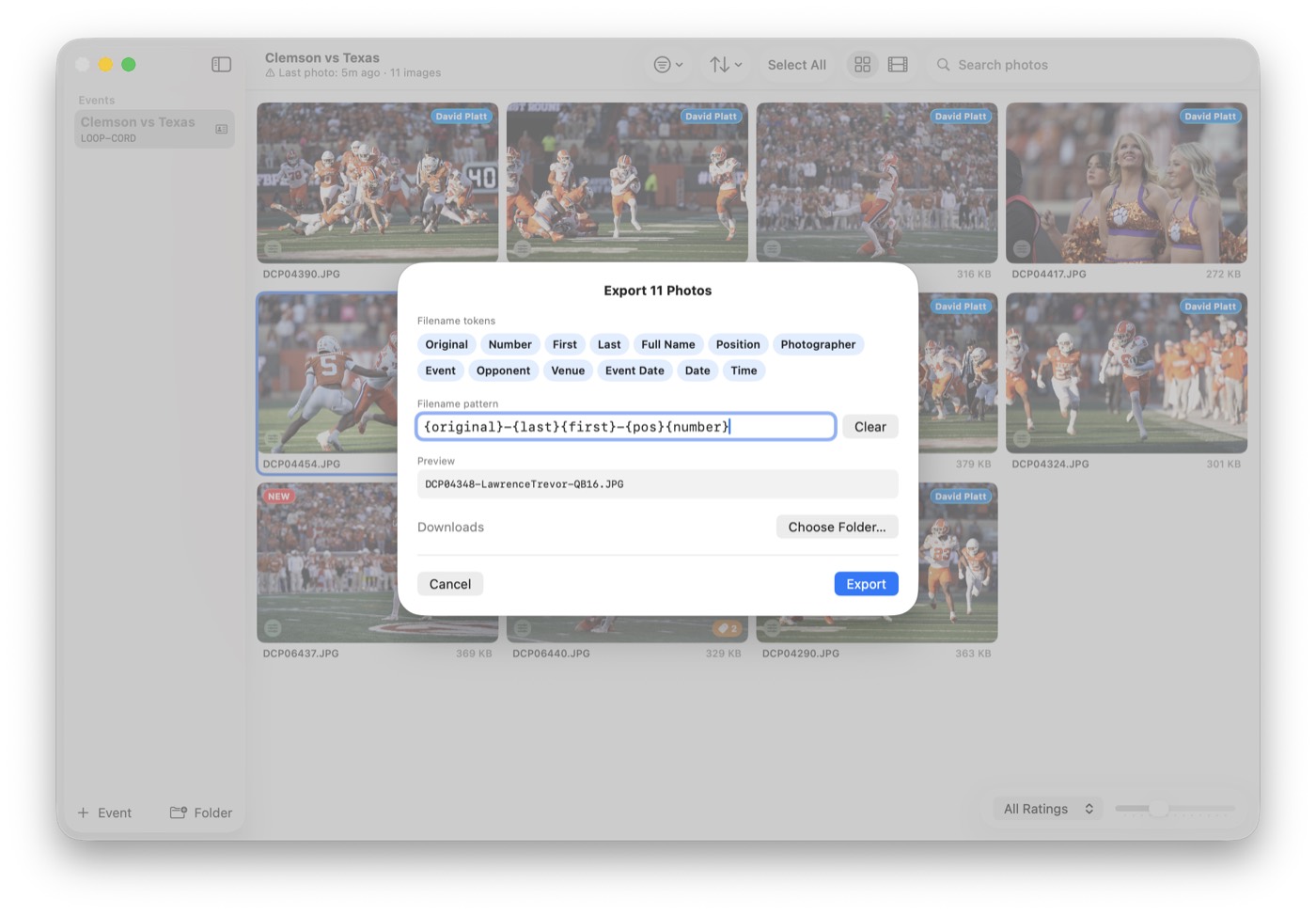
Exports can include event and roster data in the filename so delivered files are already labeled in a useful way. Photostream supports tokens for player number, player name, photographer, event, opponent, venue, and date fields, which helps keep handoff clean for social, client, or editorial delivery.
Public Gallery Handoff
Photostream can turn the current event into a shareable browser gallery without splitting the workflow into a separate system.
- Create the gallery from the event — the editor creates the public gallery from inside Photostream.
- Choose access settings — the gallery can be open, password-protected, or set to expire after a chosen duration.
- Share the link or QR code — clients, staff, and social teams can open the gallery in any browser.
- Keep the event live — new images continue appearing in the same event while the editor keeps working.
- Download individually or in bulk — browser viewers can access the current gallery without installing the app.
Join Codes
Join codes are word-pair codes like blue-hawk. They are the main way CardRunner and CardReader connect to an event. They are easy to say out loud, text to a runner, or post in a credential note before a game.
- Creating codes — every event gets its own join code.
- Who uses them — CardRunner and CardReader use join codes directly. FTP cameras also use the join code as the FTP password, alongside the FTP host and FTP username.
- Sharing codes — multiple shooters use the same code at the same time.
FTP Import (Team & Enterprise)
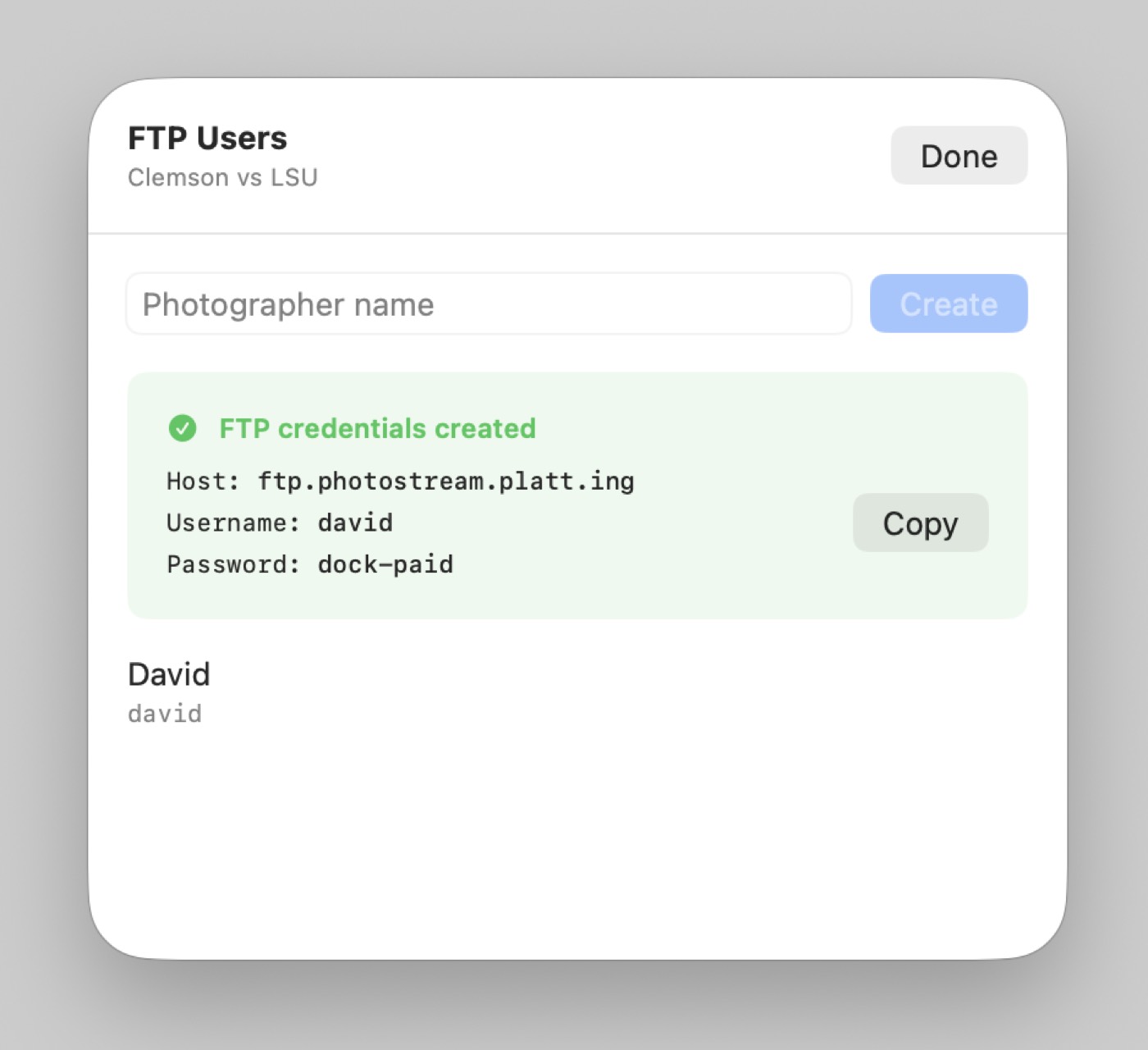
For Team and Enterprise subscribers, Photostream supports direct FTP upload from FTP-enabled cameras. The editor or admin creates FTP credentials for each FTP-sending shooter, and the event join code is used as the FTP password.
- Host — configure the camera to upload to
ftp.photostreamapp.com. - Credentials — admins create FTP users from the account area or from the event workflow in Photostream. Use the generated FTP username together with the event join code as the password.
- Best fit — use FTP when the camera and venue support a reliable direct upload workflow.
- Same pipeline — FTP uploads still land in the same Photostream workflow the editor is already watching.
- JPEG only — configure the camera to transmit JPEG, or the JPEG half of RAW+JPEG. Non-JPEG files are deleted automatically and do not appear in Photostream.
Need help configuring your camera's FTP? Contact hello@photostreamapp.com.
App Settings
Photostream also includes a small set of app-level settings that control how the editor experience feels on the Mac. These settings are not event-specific, but they matter in day-to-day use.
General
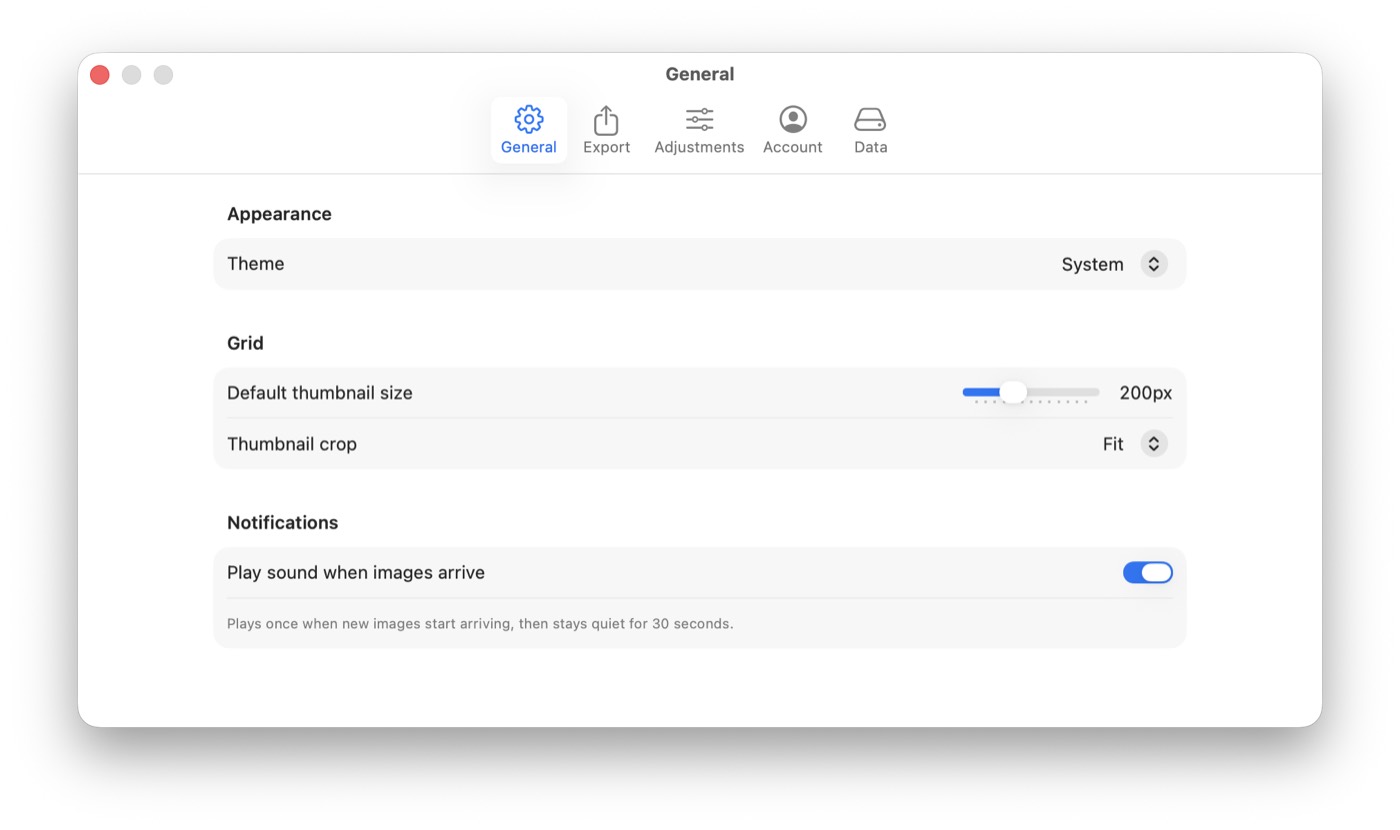
The General settings let the editor choose the app theme, set the default thumbnail size, pick thumbnail crop behavior, and control whether the app plays a sound when new images arrive. This is useful when you want a denser grid for scanning or a louder cue that fresh frames just landed.
Export preferences
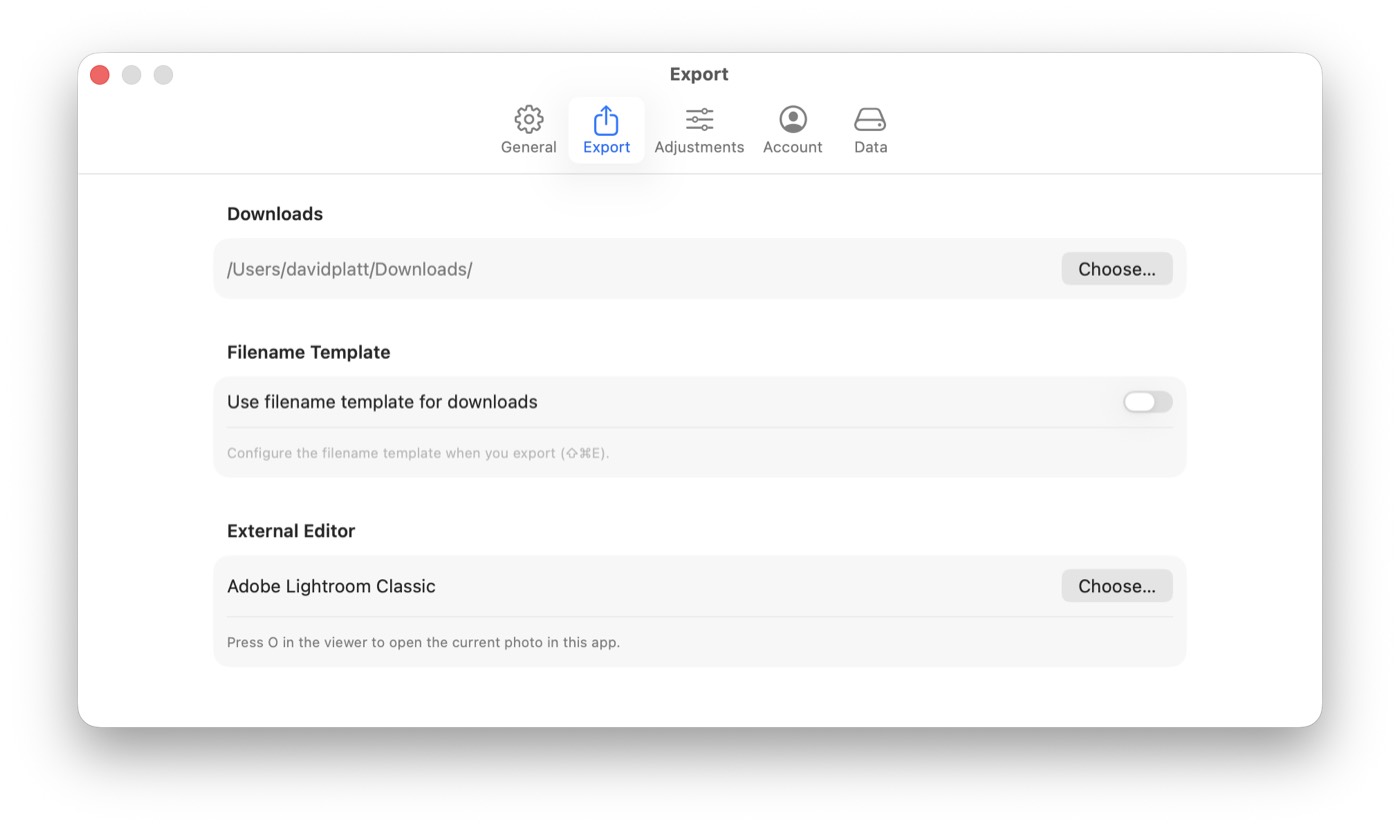
The Export settings define the default download destination, whether downloads should use the filename template system, and which external editor should open when the editor presses O from the viewer. This keeps export and handoff behavior predictable from one event to the next.
Adjustment defaults
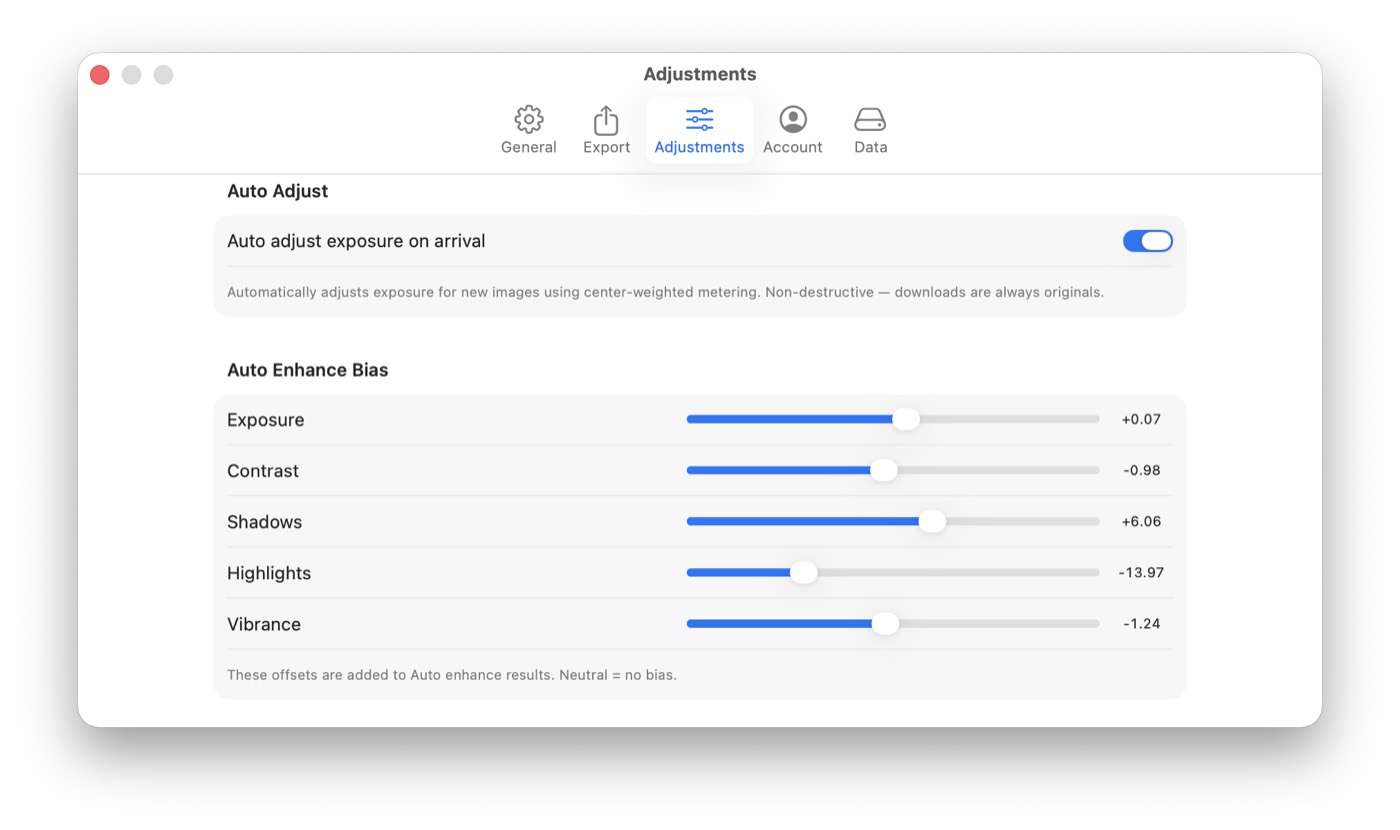
The Adjustments settings control whether Photostream automatically applies a lightweight exposure correction when new images arrive, plus the bias values used by that auto-enhance step. Editors who want a slightly brighter or flatter baseline can set it once and let new arrivals inherit that starting point.
Local data cleanup
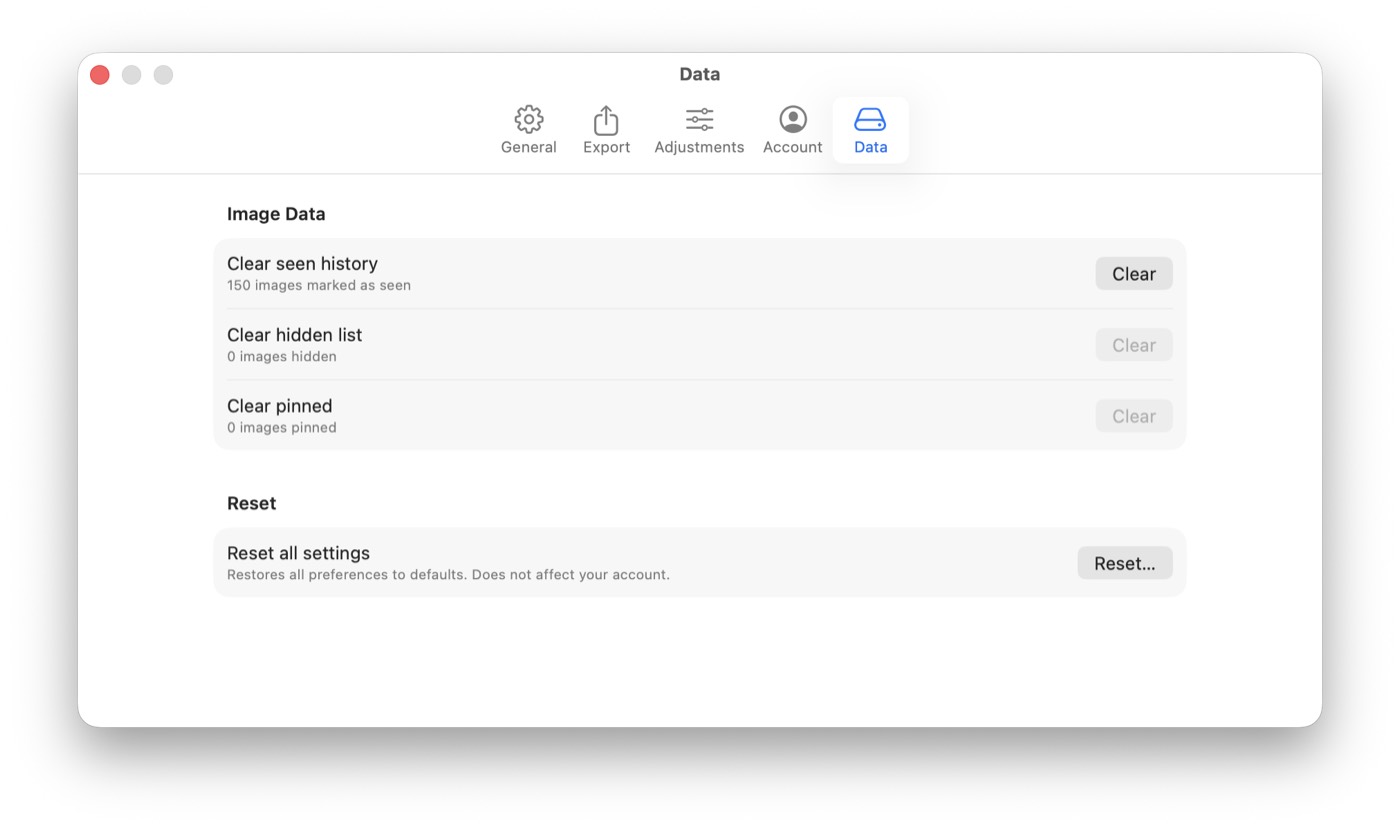
The Data settings are for local housekeeping on the Mac. Editors can clear seen-history state, empty the hidden list, clear pinned-image state, or reset app settings back to defaults without affecting the account itself.
Security & Privacy
Your photos are your work product. We take their security seriously.
- Encrypted in transit — all uploads and downloads use HTTPS/TLS encryption. No data travels unencrypted.
- Encrypted at rest — photos are stored in AWS S3 with AES-256 server-side encryption.
- Access and sharing — workspace pages require account access. Shared galleries let recipients view photos. Changing a gallery password, expiring a share, or rotating its link stops new requests through that gallery. An already issued photo link may continue working for up to one minute. Downloaded copies cannot be revoked. Share links only with intended recipients. Join codes control who can upload.
- Photo retention — photos follow a 30-day retention period; event-pass photos keep their original upload-based deadline. Deleting a photo or event can remove it earlier. We attempt approaching-deletion warning emails, but delivery and seven days of notice are not guaranteed. Download anything you need before its deadline.
- No third-party access — we don't share, sell, or analyze your photos. No AI training, no analytics on image content.
- Storage and delivery — primary photo storage is in AWS US-East-1 (Virginia). CloudFront delivery can cache photos at edge locations.
- No tracking — no third-party analytics, no ad networks, no cookies beyond authentication.
Questions about security? Contact hello@photostreamapp.com.
FAQ
How fast do photos appear?
Typically 2–5 seconds from capture to the editor's screen, depending on network conditions and file size.
What image formats are supported?
Photostream stores, indexes, displays, and delivers JPEG files only. CardReader and CardRunner convert supported RAW sources to JPEG before upload; RAW originals remain on the source card or local destination.
Upload metadata identifies the delivered JPEG with original_name (for example DCP04776.jpg) and its actual prepared JPEG byte count in size. When a conversion occurred, clients may also send source_original_name (for example DCP04776.ARW), lowercase source_format (for example arw), and conversion (for example raw-to-jpeg). Source metadata is informational and never authorizes RAW storage.
Do all shooters need to use the same ingest method?
No. One event can mix FTP, CardRunner, and CardReader. The editor still works from the same Photostream event.
Can I use Photostream for one event?
Yes. Choose an Individual or Team 48-hour event pass, create your account and workspace, and pay online. Individual is $9.99 with 3 simultaneous shooter connections and 10 GB of uploads; Team is $29 with 10 connections and 50 GB. Both include camera FTP, CardReader and CardRunner. Multiple events in your workspace share the allowance. Preview and original JPEGs each count toward it.
Your upload window starts only when you explicitly activate the paid pass. It lasts 48 elapsed hours and cannot be paused. There is no automatic renewal or free trial. After the window ends, new uploads stop; editing, sharing and downloads of retained photos continue until 30 days after each upload, unless deleted earlier. An active monthly plan, trial or directly invoiced account must use its existing access before buying a pass.
What are the upload limits?
Pro: 50GB/month, Team: 200GB/month, Enterprise: 500GB/month. The upload allowance resets monthly. Photos are auto-deleted after 30 days.
How many photographers can stream per event?
Pro: 3 shooters per event, Team: 10 shooters per event, Enterprise: unlimited.
Where do shooters get the app installers?
CardRunner is available on the App Store, and CardReader is available on the Mac App Store. Photostream subscribers can log in here and use the download link at the top of the page for the Photostream app.
Can editors download full-resolution files?
Editors can download whatever was uploaded. CardReader, CardRunner, and FTP workflows can send full-resolution files, while optimized upload modes prioritize speed. What you upload is what editors can download.
What happens when I cancel?
Cancellation does not restart photo retention. Existing photos keep their original 30-day deadlines unless deleted earlier. Download anything you want to keep before those deadlines.
What happens after an event-pass refund?
For refund questions, contact hello@photostreamapp.com. Any refund, including a partial refund, or a payment dispute stops new uploads under that pass. Previously accepted photos keep their original retention deadlines unless deleted earlier.
Need help?
Email hello@photostreamapp.com — we typically respond within a few hours.